

Start from masterrummyplay.com, check where the current download button takes you, and read the exact message on your Android device before changing anything. If a security warning appears or the destination is unexpected, stop and ask support. Repeatedly trying a file from another website is not a reliable fix.
The installation help page gives the short download steps. This article is the companion checklist for the moment before installation—or when those steps do not work. The diagrams are teaching illustrations, not Android or Master Rummy screenshots.
Three checks before opening an APK
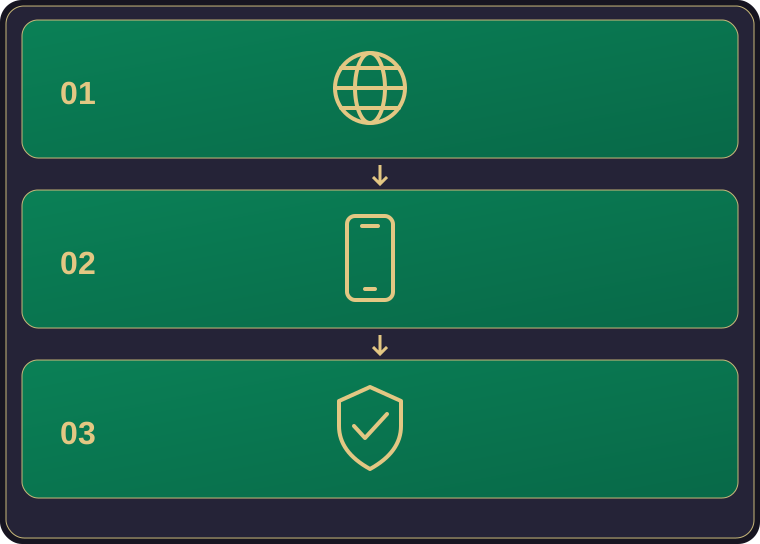
1. Check the source, not just the logo
Open the official homepage yourself and use its current download options. A copied logo, an old message or a search advert does not establish that another page is the intended source. The website may route a download through an attribution service; a redirect alone is not proof of a problem. What matters is whether the final destination and app details make sense.
If the button opens an unrelated app, a surprising payment request or an unfamiliar page you cannot verify, stop. Record the page address for support, removing personal tracking tokens before sharing it. Do not install first and investigate later.
2. Check your device against current information
Note your phone model, Android version and available storage. For the current APK size, release version and device requirements, check the download destination or store listing. Compare those requirements with your phone before installing. If a detail is missing, ask support rather than relying on an older blog post.
Wait for the download to finish. A filename ending in “.apk” is not proof that the file is complete or authentic. Avoid treating a renamed file or a second copy with a similar name as a verified update.
3. Keep security checks in place
Google recommends getting apps from Google Play and warns that other sources can put a device or personal information at risk. See Google's Android download guidance. If you choose an APK, read any installation-permission prompt carefully; allow a trusted browser or file manager only when you understand why it needs that access.
Keep Play Protect enabled. Google explains that it checks for harmful behaviour and can warn about, block or remove apps. A warning is a reason to pause, not an instruction to disable protection. See Google's Play Protect guidance. No download route supports an absolute safety guarantee.
Find the stage that failed
- The button does not open: check whether the connection works, return to the current homepage and try its button once more. Note whether nothing happens or a page displays an error.
- The file stops downloading: check the connection and storage, then obtain a fresh complete copy from the current official route. Keep track of which file you actually open.
- Android says the app was not installed: copy the exact message. Compatibility, file completeness and an existing installation are different questions; that short message alone does not identify the cause.
- A store listing says unavailable or incompatible: keep the listing address and message. Do not substitute a similarly named app or look for a modified package.
- A security warning appears: stop. Preserve the wording and ask support to investigate the source or release; do not use a bypass tutorial.
Change one ordinary troubleshooting condition at a time. If you reconnect and download again, record that result. “I tried everything” gives support less to work with than a short sequence of observed steps.
Updating an existing installation needs extra care
Do not uninstall the current app simply because an update fails. First ask whether that could affect your account access or locally stored progress. Likewise, clearing app data is not a harmless general-purpose step. Keep the current version details if visible and explain whether the problem began during a fresh installation or an update.
Use the present official route rather than assuming a saved APK remains the latest release. After a successful APK installation, review whether the browser or file manager still needs permission to install other apps; the website's installation page explains that this permission can be turned off again.
Send a useful installation report
Use the verified Master Rummy support contact, masterrummyx@gmail.com. A helpful message contains:
- Phone model and Android version.
- APK or Google Play route, and whether this is an installation or update.
- The exact error, when it appeared, and the steps immediately before it.
- App version if known; otherwise say “not known”.
- A redacted screenshot if it explains the issue.
Hide notification contents, account details and unrelated information. Never send a password, PIN or one-time code. There is no advertised guaranteed response time; keep the original report so a follow-up can add new evidence rather than restart the story.
After installation
Review the app's actual prompts and rules. The first-game table guide explains card layouts, not installation settings. For an account or purchase question, use the separate purchase and support checklist. Installing the app does not confirm the terms of a purchase.